
Your passwords stay on your phone.
A password manager with no account and no cloud of ours. It fills in your logins and opens with your fingerprint or screen lock.

Android 8.0 and newer
Set it up once, then forget the app is there.
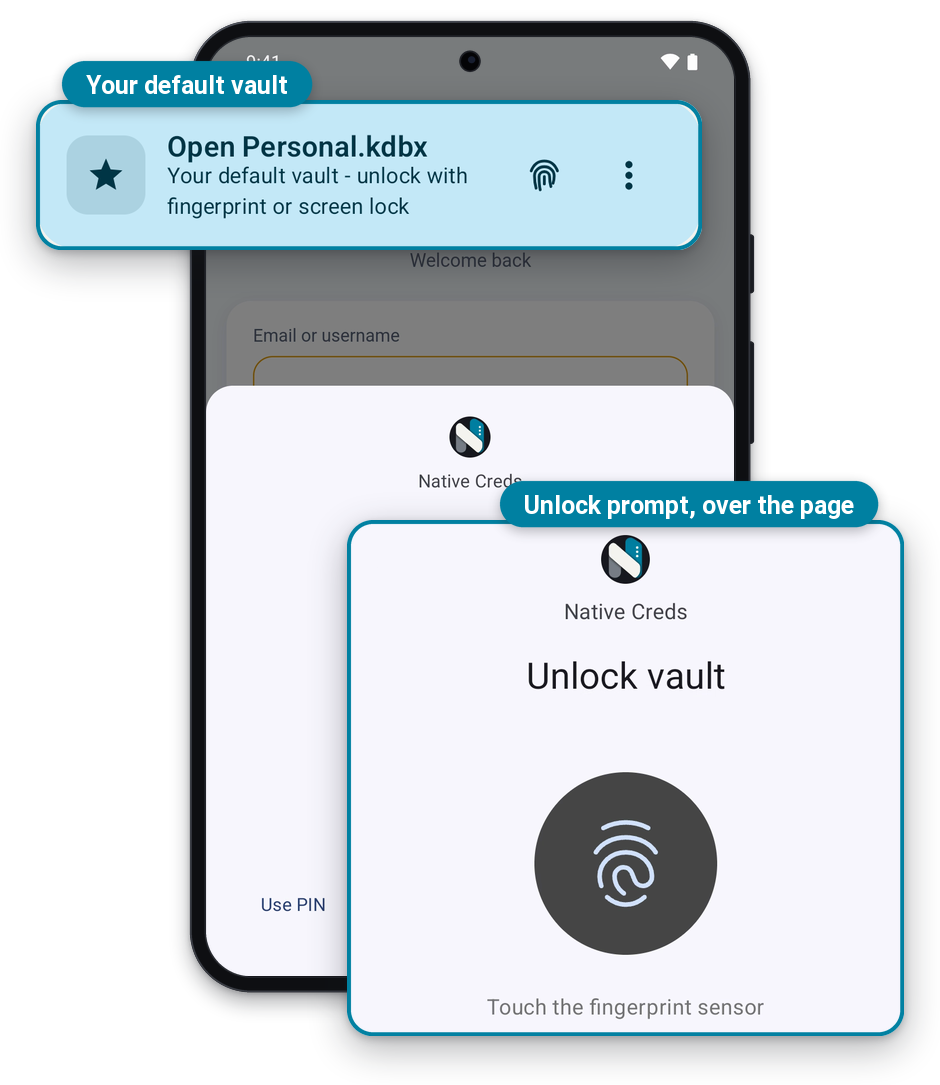
Signing in then shows only your phone's unlock prompt, not the app.
-
Make it your default vault
Already on for your first vault.
-
Turn on fingerprint or screen lock
Switch it on when you create the vault.
-
Let it fill your logins
Tap Set as default on the home screen.
You still tap Unlock, then your login. Keep your master password: a new phone asks for it.
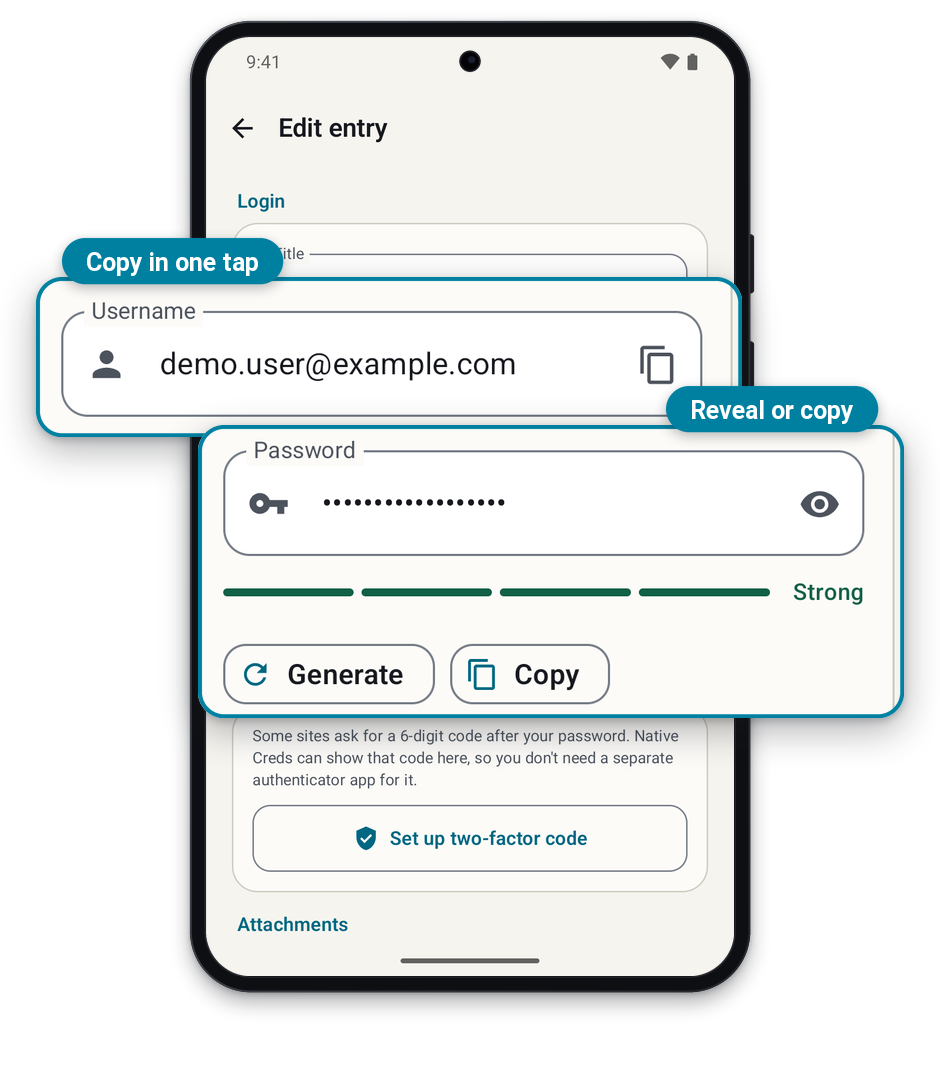
Add a login. Copy it in one tap.
Save a site's username and password, or let Native Creds invent a strong one for you.
- Password hidden until you tap the eye
- Copied passwords clear after 30 seconds
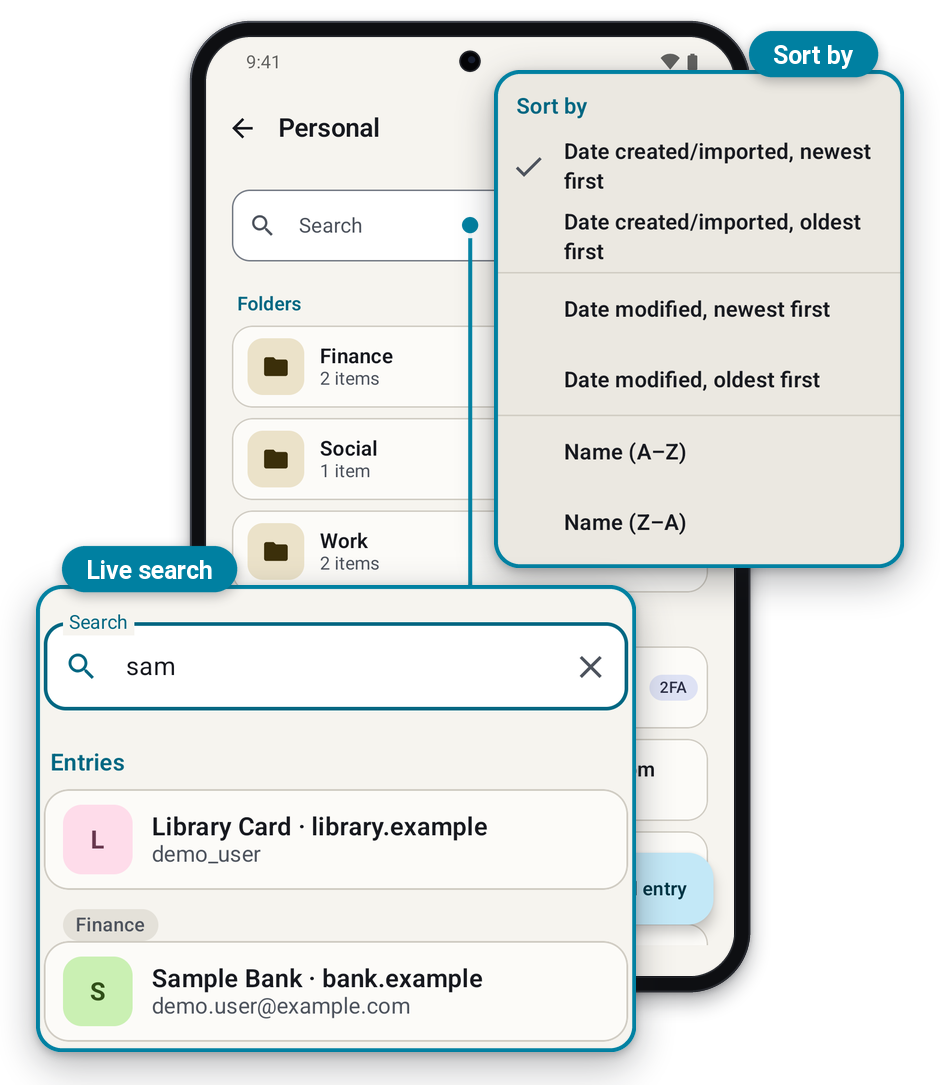
Find the right one fast
Folders, plus search that narrows as you type. Sort by name or date.
- Move or copy several at once
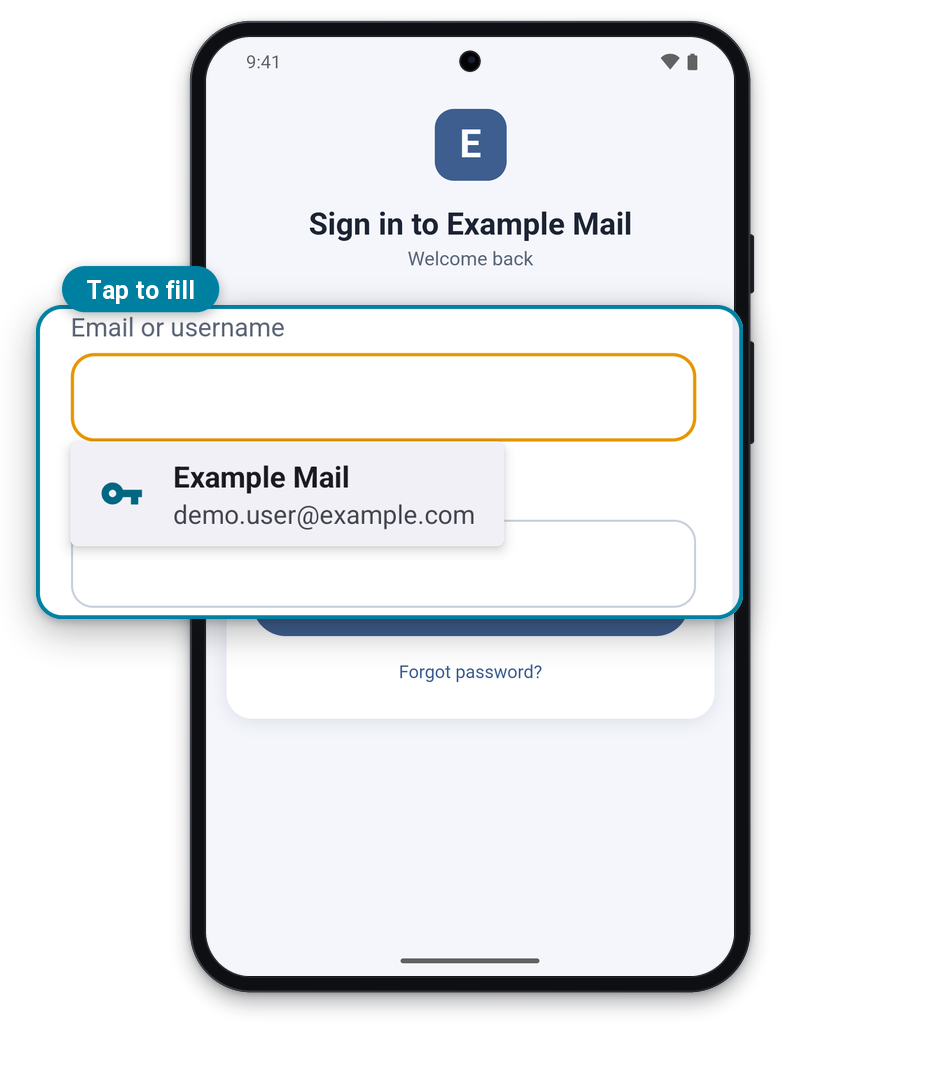
Sign in without typing
Native Creds offers your saved login right on the sign-in screen, in apps and in browsers like Chrome.
- Works for two-step sign-ins
- You always tap to confirm
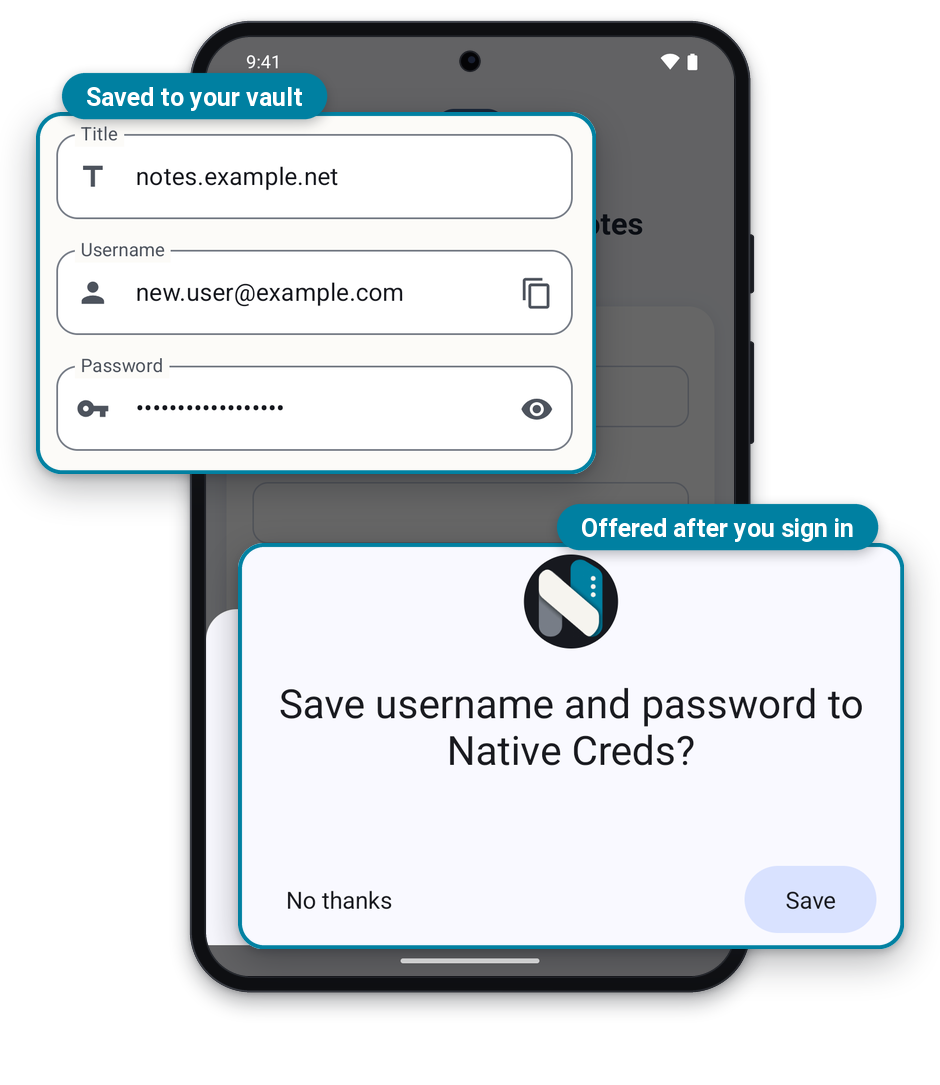
Saves new logins as you go
Sign in somewhere new and your phone asks if you want to save it. Nothing is saved unless you tap Save.
- Goes into your default vault
- A changed password updates the old one
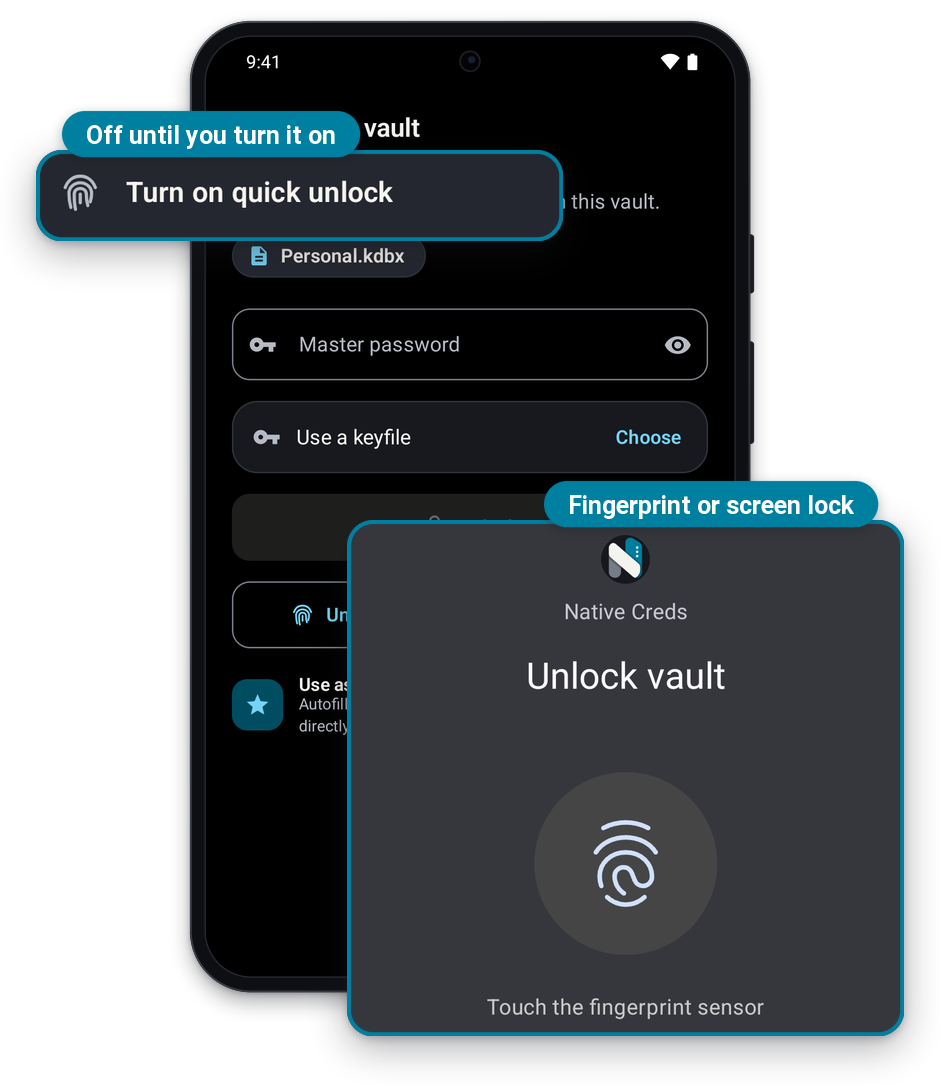
Open it with your fingerprint or screen lock
Skip typing your master password. Turn it on for each vault, when you create it or later from its menu.
- Your master password always works too
The prompt is drawn by Android, so on your phone it may look a little different. Needs a screen lock set up on your phone.
Sign in without seeing the app
With a default vault and fingerprint or screen lock, only your phone's unlock prompt appears over the page.
- No vault to pick
- Nothing to type
2FA codes, no extra app
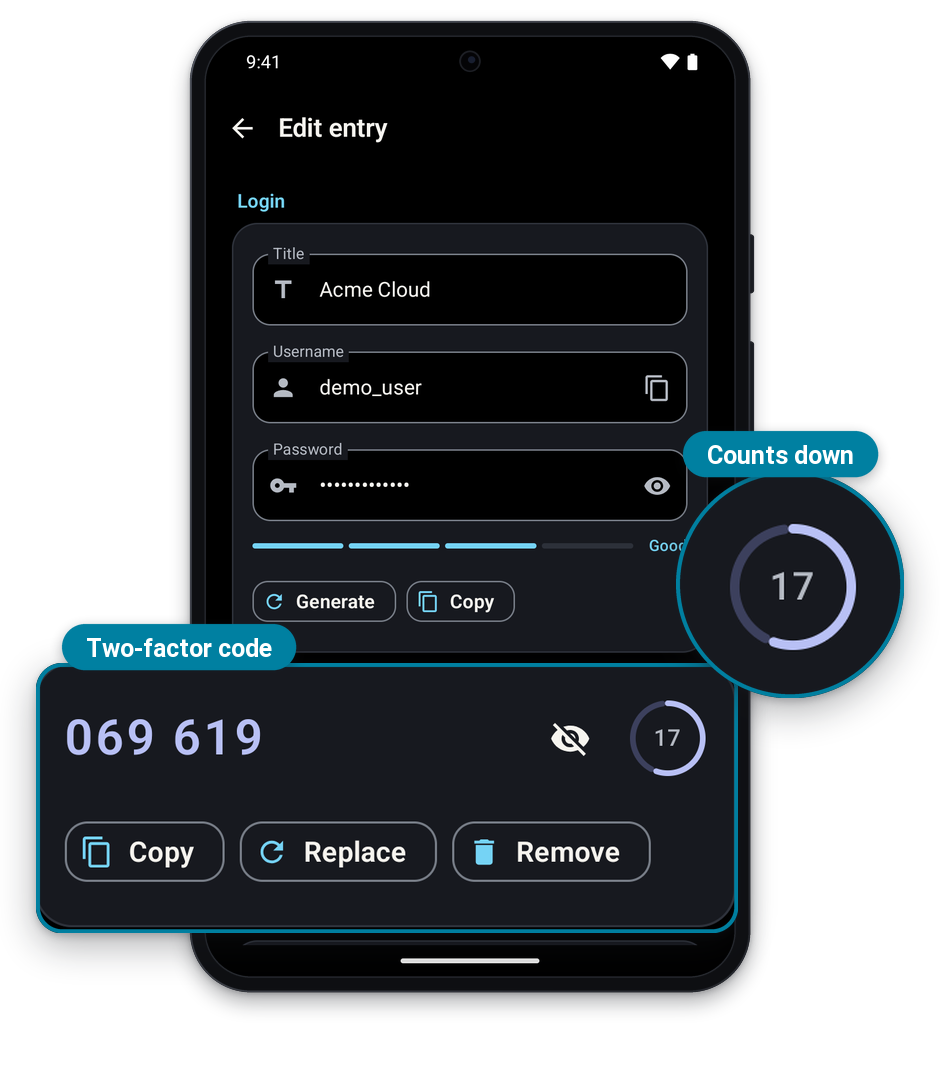
Add the key from a site's two-factor setup and the 6-digit code shows in the same entry, counting down.
- No QR scanning yet: paste the key
Keeping the code next to the password is a trade-off (see the FAQs).
Use it on two phones
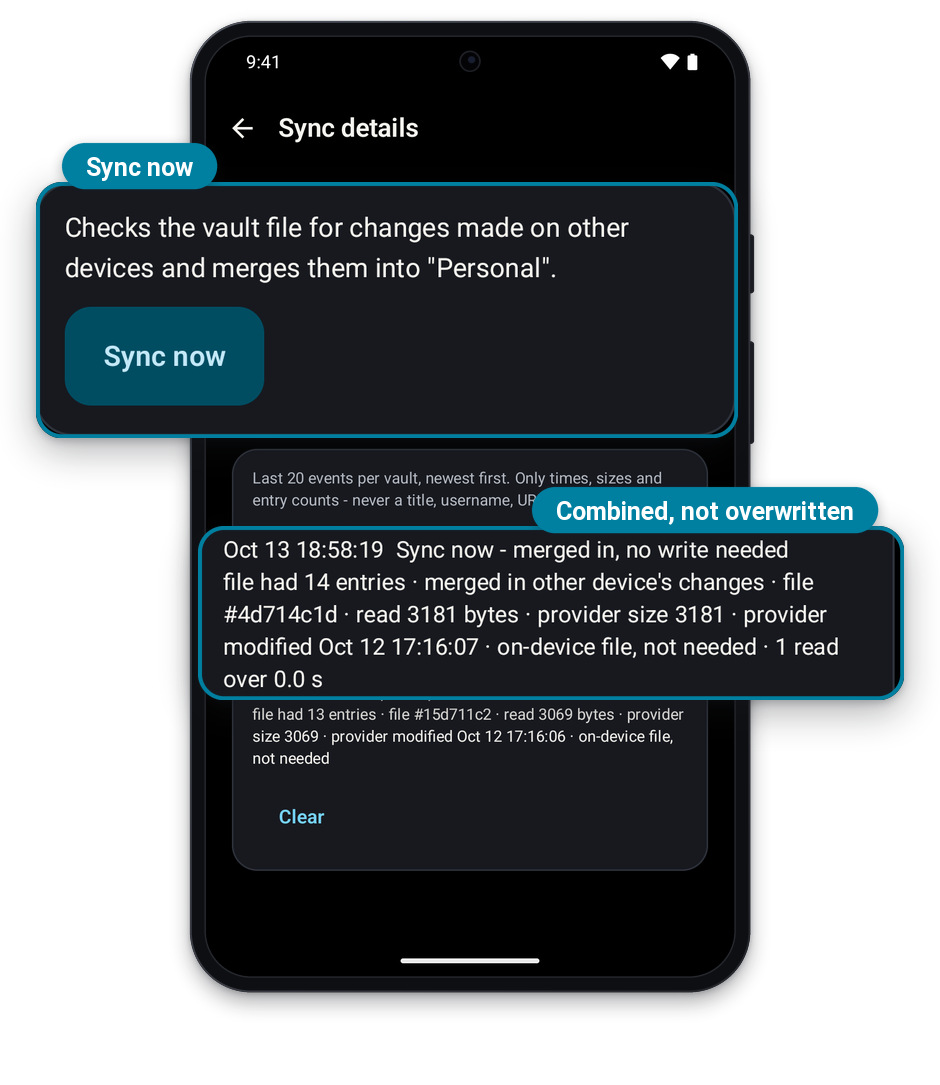
Keep your vault file in your own Google Drive and open it on both phones. Changes from each are combined, not overwritten.
- No cloud of ours involved
- Same login edited twice: newest wins
Move in from Chrome or another manager
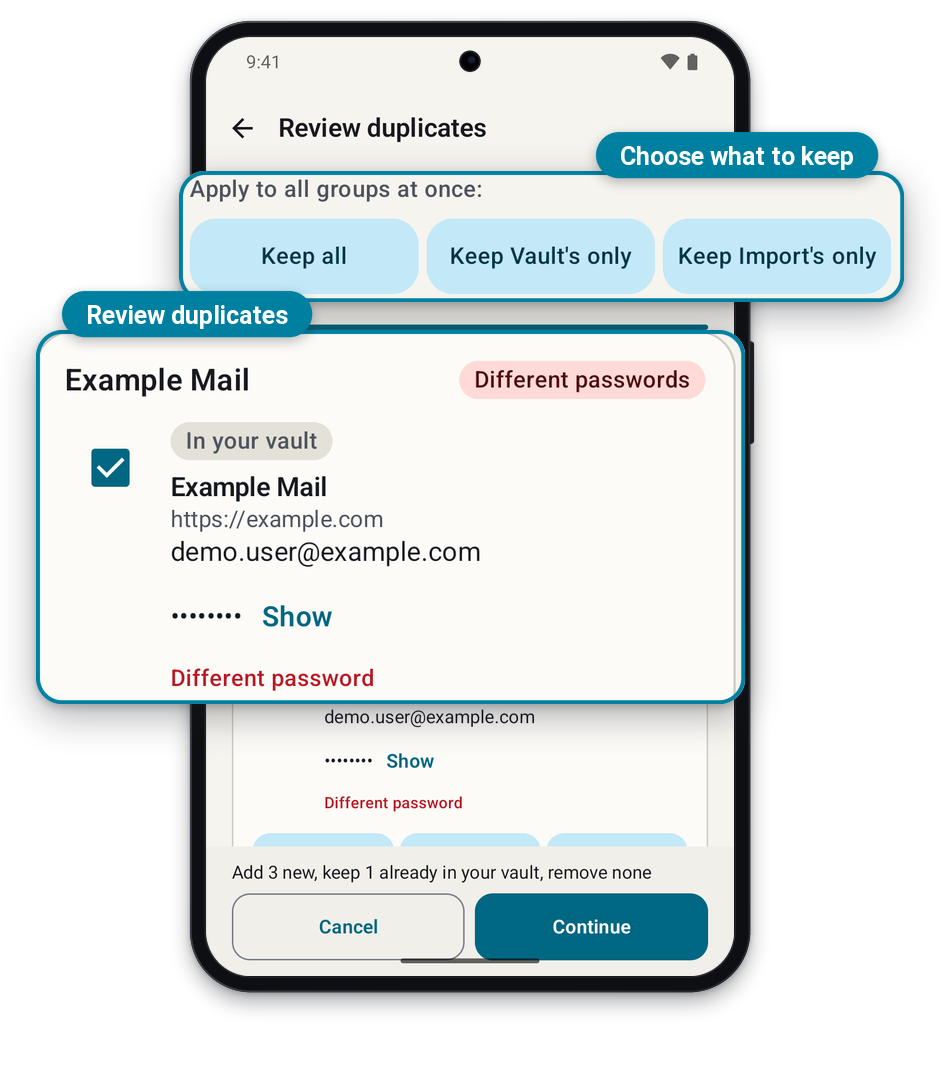
Bring your passwords from Chrome, Google Password Manager, Bitwarden, LastPass and more. You check duplicates before anything is added.
- Offers to delete the export file
- Passkeys can't be imported
Keep small files with a login
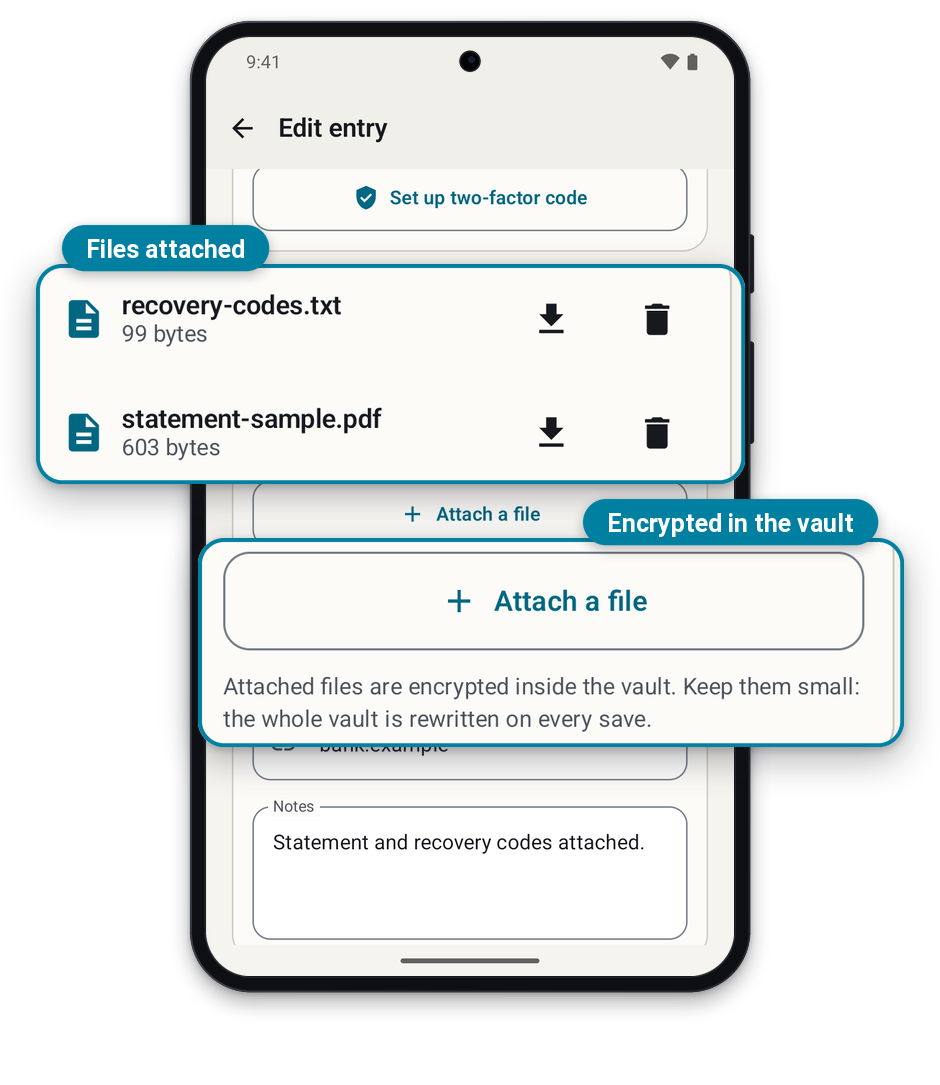
Attach recovery codes or a scan to the login they belong to. They are encrypted inside your vault.
- Saving one out makes an unprotected copy
Never locked in
Your vault is a standard KeePass file (a common password-file format), so other apps can open it too.
- Works in KeePassXC, KeePassDX, Strongbox
- Open files from Drive, email or Files
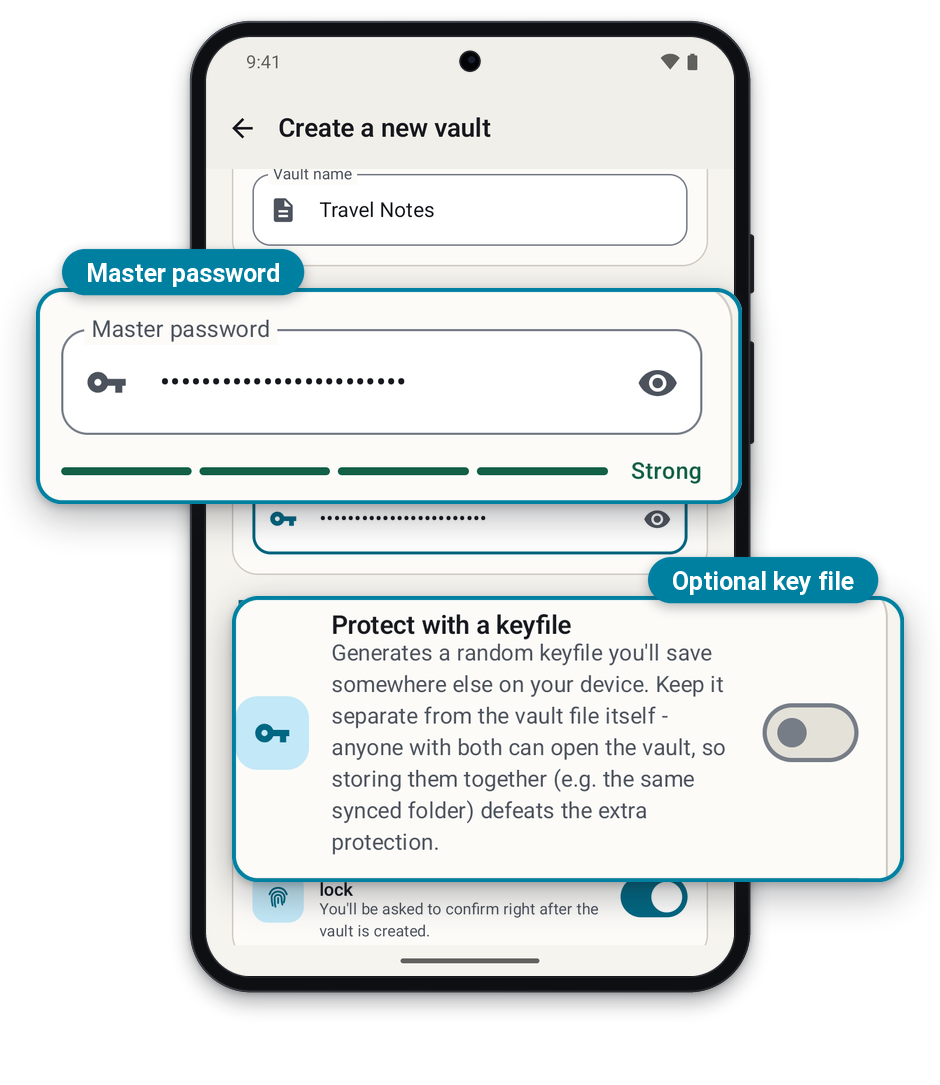
- Master password, key file, or both
Light, dark, or follow your phone
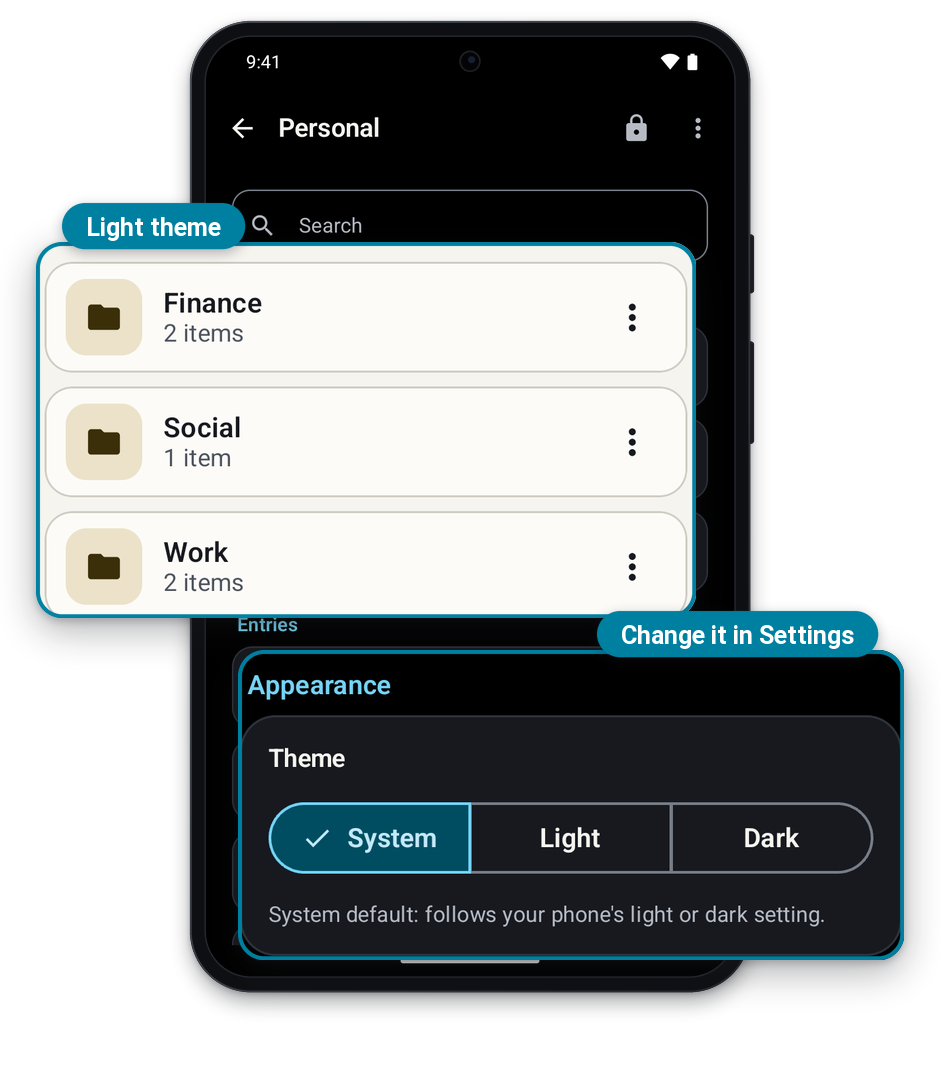
Pick System, Light or Dark in Settings.
Safe by default
Locks when you leave
Press home, switch apps or turn the screen off and the vault locks.
Clipboard cleans itself
Copied passwords and codes clear after 30 seconds, even in another app.
Hidden from screenshots
Screenshots, screen recording and the recent-apps preview are blocked.
What it does not do yet
- Passkeys, QR scanning for 2FA, and changing the master password inside the app.
- Versions for iPhone, Mac or Windows. Android only for now.
- Nobody can reset a forgotten master password, not even me. Keep a backup copy of your vault file.
More in the FAQs.
Still have a question?
Check the FAQs first — if they do not cover it, I would like to hear about it directly.